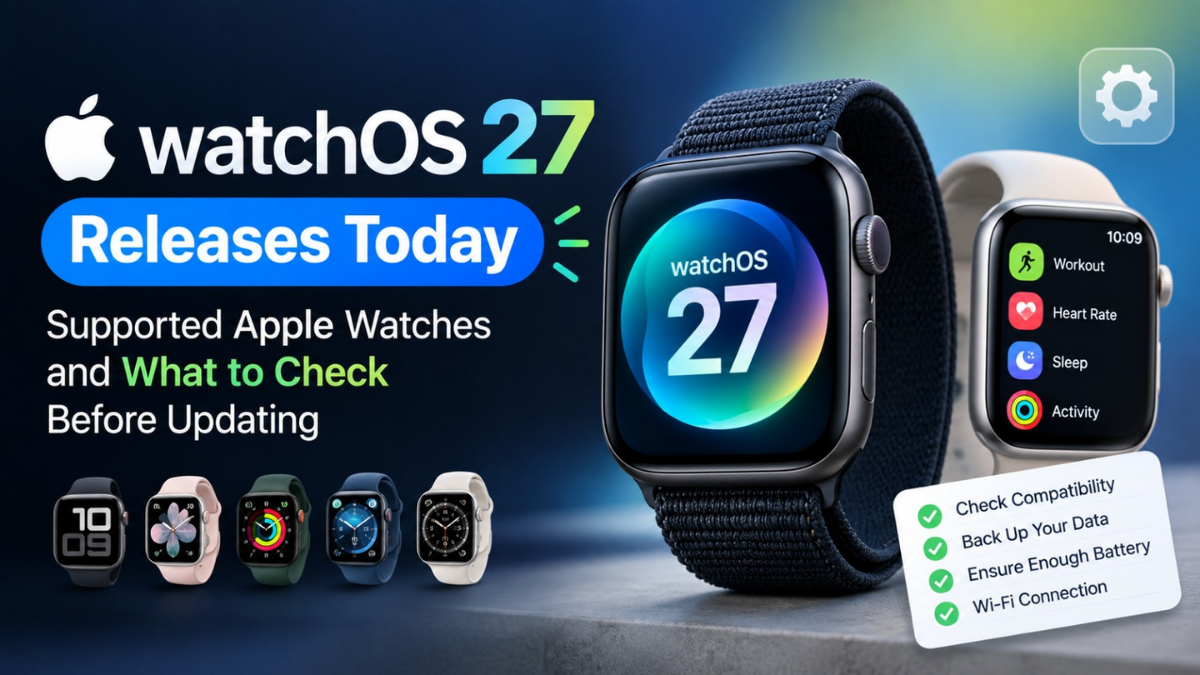
watchOS 27 Releases Today: Supported Apple Watches and What to Check Before Updating
 By Inflix
 watchOS 27 arrives today, but compatibility has tightened significantly, so checking your Apple Watch and paired iPhone before updating matters more than usual.
Apple is releasing watchOS 27 on 14 September 2026, bringing Siri AI, a redesigned app grid, new Smart Stack controls, Workout Buddy improvements and other changes to compatible Apple Watch models. Apple confirms that the update supports Apple Watch Series 9 and later, Apple Watch SE 3, and Apple Watch Ultra 2 and later.
However, installing the update is not simply a case of tapping “Download”. Your Apple Watch must be compatible, your paired iPhone needs iOS 27, and Apple still requires at least 50% battery with the watch on its charger during installation.
For readers following Apple Watch coverage on Mobile Verse, here is everything worth checking before you update.
watchOS 27 Release: What Is Happening Today?
Apple has confirmed that watchOS 27 becomes available from 14 September. The release arrives alongside iOS 27 and other major Apple software updates.
Apple has not provided a single global release time on its watchOS page. Therefore, users should avoid treating unofficial time estimates as guaranteed. Availability may appear gradually depending on region and Apple’s server rollout. If the update does not appear immediately, that does not necessarily mean your Apple Watch is unsupported.
Which Apple Watches Support watchOS 27?
Apple’s current compatibility page lists the following supported models.
| Apple Watch model | watchOS 27 support |
|---|---|
| Apple Watch Series 9 | Supported |
| Apple Watch Series 10 | Supported |
| Apple Watch Series 11 | Supported |
| Apple Watch Series 12 | Supported |
| Apple Watch SE 3 | Supported |
| Apple Watch Ultra 2 | Supported |
| Apple Watch Ultra 3 | Supported |
| Apple Watch Ultra 4 | Supported |
This means several older watches that could run watchOS 26 do not make the jump to watchOS 27. Apple’s current watchOS 27 compatibility list does not include Apple Watch Series 8 or earlier, Apple Watch SE 2, or the first-generation Apple Watch Ultra.
That is an important change because watchOS 26 supported a wider range of older hardware, including Apple Watch Series 6 and later, Apple Watch SE 2 and later, and Apple Watch Ultra models.
What iPhone Do You Need for watchOS 27?
Your Apple Watch is only one part of the compatibility requirement. Apple says watchOS 27 requires an iPhone 11 or later, or an iPhone SE (2nd generation or later), running iOS 27.
Therefore, you may have a supported Apple Watch but still be unable to install the update if your paired iPhone cannot run iOS 27. Before checking for watchOS 27, update your iPhone first. This is one of the most important checks because Apple Watch software updates depend on the software version and compatibility of the paired iPhone.
What to Check Before Downloading watchOS 27
Before starting the watchOS 27 update, make sure the basic requirements are in place.
- Update your paired iPhone to iOS 27 first.
- Charge your Apple Watch to at least 50%.
- Keep the Apple Watch on its charger during installation.
- Connect your iPhone to Wi-Fi.
- Keep the Apple Watch and paired iPhone close together.
- Make sure there is enough free storage for the update.
Apple specifically recommends at least 50% battery and keeping the watch on its charger while the update installs. If storage becomes a problem, you can check Apple Watch storage through the Watch app on your iPhone under General > Storage.
Do You Need to Back Up Apple Watch Before Updating?
Apple Watch backups work differently from iPhone backups. Your Apple Watch automatically backs up data to the paired iPhone while the two devices remain near each other. You do not normally need to trigger a separate manual Apple Watch backup before installing watchOS 27.
The backup can include app settings, watch-face customisation, notification settings, app layout, Health and Fitness information and other configuration data. Apple also says that when you back up your iPhone to iCloud or a computer, the Apple Watch data stored on that iPhone becomes part of the iPhone backup. However, some information does not form part of the Apple Watch backup, including Apple Pay cards, Bluetooth pairings and the Apple Watch passcode.
If your Health and Fitness data matters to you, making sure your iPhone has a current iCloud or encrypted computer backup remains a sensible precaution.
How to Update Apple Watch to watchOS 27
There are two main ways to install the watchOS 27 download.
Update Using Your iPhone
Open the Watch app on your paired iPhone.
Go to:
My Watch > General > Software Update
When watchOS 27 appears, follow the on-screen instructions. Keep your Apple Watch on its charger and leave the iPhone nearby until installation finishes.
Update Directly From Apple Watch
Apple also allows supported watches running watchOS 6 or later to install updates directly.
On your Apple Watch, go to:
Settings > General > Software Update
If watchOS 27 appears, tap Install and follow the instructions. Apple says the watch should remain connected to Wi-Fi and stay on its charger throughout the update. Do not restart the watch during installation. It will restart automatically when the process completes.
Important watchOS 27 Features Worth Knowing About
Apple has made Siri AI one of the headline features of watchOS 27. The new version introduces a more capable Siri experience powered by Apple Intelligence, alongside a dedicated Siri app that lets users revisit previous conversations. Apple has also added a new dynamic app grid. It can surface frequently used and recently used apps, making the Home Screen more adaptive.
Another change is a new single-handed tap gesture for the Smart Stack. Users can tap their index finger and thumb to open a widget, while the existing double-tap gesture can move through the Smart Stack. Workout Buddy also gains improvements. Apple says it can now work directly on Apple Watch without the paired iPhone nearby in supported situations, and it uses additional fitness information to deliver motivational insights.

Cycle Tracking gains additional support for perimenopause and menopause, while treadmill tracking receives new machine-learning improvements for more accurate distance calculations.
Will Every Apple Watch Get Every watchOS 27 Feature?
No. Apple explicitly notes that not every watchOS 27 feature is available on every device or in every region. Apple Intelligence features provide the clearest example. Apple says Apple Intelligence on watchOS 27 requires a supported Apple Watch paired with an Apple Intelligence-enabled iPhone nearby. Supported watches include Series 9 or later, Apple Watch Ultra 2 or later and Apple Watch SE 3, but the paired iPhone also has to meet Apple Intelligence requirements.
Siri AI also launches in beta and initially supports English, with additional language support planned later. Regional restrictions also apply. Therefore, simply having watchOS 27 does not guarantee access to every feature Apple demonstrates.
Should You Install watchOS 27 Immediately?
For most users with a supported Apple Watch and iPhone, installing watchOS 27 should be reasonable once the update becomes available. However, there is no requirement to install it within the first few hours. Major software releases often trigger heavy download demand on launch day. In addition, early adopters are the first people to discover app compatibility problems or unusual behaviour that may not have appeared during beta testing.
If your Apple Watch is critical for work, health tracking or travel, waiting a day or two can be sensible. On the other hand, users interested in Siri AI, the new app grid or other headline changes may prefer to update straight away. The safest approach is to update only after confirming compatibility, charging the watch and making sure the paired iPhone is already on iOS 27.
What About Battery Life After the watchOS 27 Update?
Users sometimes notice higher battery usage immediately after a major Apple Watch software update. That does not automatically mean the new software has permanently damaged battery life.
Apple explains that after updating watchOS, background tasks can continue running for a while and may temporarily affect battery performance. Apple recommends waiting a few days before judging whether battery life has genuinely worsened. Therefore, avoid drawing conclusions from the first few hours after installing watchOS 27.
If battery drain continues after several days, check Battery Health under Settings > Battery > Battery Health on the watch.
What If watchOS 27 Does Not Appear?
First, confirm that both devices meet the requirements. Your Apple Watch must appear on Apple’s watchOS 27 compatibility list, while your paired iPhone needs iOS 27. Next, check Wi-Fi connectivity, battery level and available storage.
Apple also recommends restarting both the Apple Watch and paired iPhone if an update does not begin properly. If necessary, users can delete a partially downloaded update file through the Watch app under General > Storage and try again. If you previously installed beta software, make sure the beta profile or update channel is no longer preventing access to the public release.
How Long Does the watchOS 27 Installation Take?
There is no single installation time for every device. Apple says an Apple Watch software update can take anywhere from several minutes to around an hour, depending on conditions. Download speed, server demand, Apple Watch model and the size of the update can all affect the process.
Because of this, avoid starting the update immediately before leaving home or before a workout where you need the watch. Installing it in the evening while both devices can remain nearby is often more convenient.
Mobile Verse Verdict: Should Apple Watch Users Upgrade?
For compatible devices, watchOS 27 is a significant update rather than a minor maintenance release. The addition of Siri AI, the dynamic app grid, Smart Stack changes and new health and fitness capabilities gives supported watches meaningful new functionality. However, compatibility is noticeably stricter this year.
Owners of Apple Watch Series 8 and older hardware, Apple Watch SE 2 and the original Apple Watch Ultra do not appear on Apple’s official watchOS 27 compatibility list.
If your devices are supported and you want the latest features, updating makes sense once you have prepared your watch properly. If you rely heavily on your Apple Watch every day and want to minimise launch-day risk, waiting briefly for early user feedback is also reasonable.
For more Apple software and wearable coverage, follow Mobile Verse Gadgets & Reviews and our latest gadget news on Mobile Verse as Apple continues rolling out its 2026 software updates.
Frequently Asked Questions
Is watchOS 27 available today?
Yes. Apple says watchOS 27 becomes available from 14 September 2026.
Which Apple Watches support watchOS 27?
Apple lists Apple Watch Series 9, Series 10, Series 11, Series 12, Apple Watch SE 3, Apple Watch Ultra 2, Ultra 3 and Ultra 4 as compatible.
Can my Apple Watch run watchOS 27?
It can if your watch appears on Apple’s compatibility list and you have a compatible iPhone running iOS 27.
Do I need to update my iPhone first?
Yes. Apple says watchOS 27 requires iOS 27 on a compatible paired iPhone.
How long does the watchOS 27 update take?
Apple says Apple Watch software updates can take from several minutes to around an hour, depending on the device and connection.
Should I install watchOS 27 immediately?
You can if your devices are compatible and properly prepared. However, users who depend heavily on their watch may prefer to wait briefly for early feedback.
Will watchOS 27 affect battery life?
Battery usage can temporarily increase after an update because background tasks continue running. Apple recommends waiting a few days before assessing long-term battery performance.