
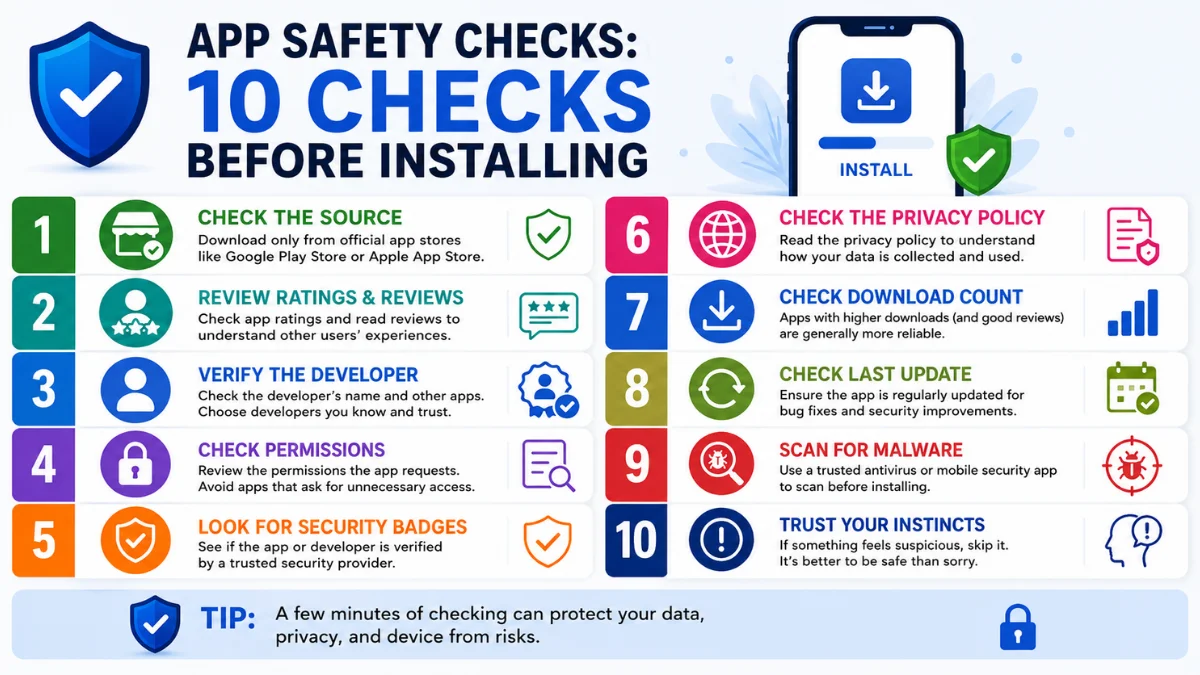
App Safety Checks: 10 Checks Before Installing
 By Inflix
 App safety checks can help you avoid fake apps, hidden subscriptions, malware and unnecessary access to your personal information. Although an application may look genuine in the store, its name, logo and screenshots can sometimes copy a trusted bank, game, delivery service or social media platform.
Therefore, you should not press Install simply because an app appears near the top of the search results. Instead, examine the developer, permissions, reviews, privacy information and download source first.
Official app stores include security protections, but no system can guarantee that every application will remain completely safe. The UK National Cyber Security Centre has documented security risks involving both official and third-party application stores. Consequently, users should still assess an app before installing it. Read the NCSC threat report on application stores.
This guide explains ten practical app safety checks for Android and iPhone users, including how to identify fake apps, review dangerous permissions and remove suspicious software.
Why App Safety Checks Matter
Mobile apps can request access to sensitive parts of your phone, including your camera, microphone, location, contacts, photos and files.
Some permissions make sense. For example, a navigation app needs your location, while a video-calling app requires access to the camera and microphone.
However, a simple calculator should not normally need your contacts, messages or precise location. When an app requests information that has no clear connection to its purpose, you should investigate before approving it.
Google explains that Android users can allow or deny permission requests and later change access for individual apps through Settings. View Google’s official Android app permission guidance.
10 App Safety Checks Before Installing Anything
1. Confirm That You Found the Correct App
Fake applications often copy the name, icon and branding of popular services.
For example, a fraudulent app may claim to represent:
- A bank
- A delivery company
- A mobile network
- A government service
- A cryptocurrency platform
- A popular game
- A well-known retailer
Before installing, visit the company’s official website and use its app download link where available. This approach reduces the risk of choosing a copied app from search results.
Additionally, check the spelling carefully. Scammers may replace one letter, add an extra word or use phrases such as “official”, “secure” or “pro” to appear legitimate.
Quick App Safety Checks Table
| Check | Safer sign | Warning sign |
|---|---|---|
| Developer | Recognised company name | Unknown or misspelt name |
| Download source | Official app store | Link sent through a random message |
| Permissions | Match the app’s purpose | Access to unrelated sensitive data |
| Reviews | Detailed and varied | Repetitive five-star comments |
| Updates | Recently maintained | No update for several years |
| Privacy details | Clear explanation | Missing or vague information |
| Payments | Clearly disclosed | Unexpected subscription request |
2. Verify the Developer’s Name
One of the most important app safety checks involves confirming who created the application.
Open the app listing and look at the developer name. It should match the business or organisation that claims to provide the service.
Next, tap the developer profile and examine its other apps. A major bank or global technology company will usually have a consistent collection of related applications.
Be cautious when the developer:
- Uses a personal name for a major branded service
- Has published several unrelated copied apps
- Provides no genuine website
- Uses a free email address for support
- Has an incomplete or suspicious privacy policy
Nevertheless, an unfamiliar developer is not automatically dangerous. Small independent developers can create trustworthy apps. The goal is to verify whether the available information appears consistent and credible.
3. Install Apps From Trusted Sources
Android users can install apps from websites, alternative app stores and APK files. However, this flexibility can create additional risks.
Google Play Protect checks applications during installation and periodically scans Android devices for potentially harmful apps. It may warn users, disable harmful software or remove detected threats. Learn how Google Play Protect helps keep apps safe.
Google also warns users when they attempt to install potentially harmful apps from the internet or third-party marketplaces. In some cases, the verification system can block an installation. Read Google’s official app-verification guidance.
Therefore, avoid installing APK files sent through:
- Telegram
- Text messages
- Social media
- Unexpected emails
- Pop-up advertisements
Similarly, iPhone users should normally use Apple’s App Store and avoid installing unknown profiles or software from untrusted websites.

4. Check Whether the Permissions Make Sense
App permissions should match the application’s main function.
For example:
| App type | Permissions that may be reasonable |
|---|---|
| Navigation app | Location |
| Video-call app | Camera and microphone |
| Photo editor | Selected photos |
| Messaging app | Contacts and notifications |
| Banking app | Camera for identity checks |
In contrast, a torch app requesting access to your contacts, microphone and location should raise questions.
Pay particular attention to requests involving:
- SMS messages
- Call logs
- Accessibility services
- Device administration
- Notification access
- Precise location
- Contacts
- Microphone
- Camera
Google classifies permissions involving information such as SMS and call logs as sensitive or high risk and places additional requirements on apps that request them. See Google Play’s sensitive-permission requirements.
Do not approve a permission merely because the app refuses to continue. Instead, consider whether the request genuinely supports the feature you want to use.
5. Read Reviews Carefully
Reviews can reveal useful information, but star ratings alone do not prove that an app is safe.
Fake or manipulated reviews may use short, repetitive phrases such as:
- Great app
- Very good
- Works perfectly
- Amazing service
Look for detailed recent reviews that describe actual features and problems. In particular, search for reports of:
- Unexpected payments
- Difficult subscription cancellation
- Excessive advertising
- Login problems
- Stolen accounts
- Unwanted permissions
- Battery drain
- Data collection
- Fake customer support
Also compare positive and negative reviews. A suspicious app may have thousands of five-star ratings while recent users report serious security or billing problems.
However, remember that even genuine apps receive complaints. Focus on repeated patterns rather than one angry review.
6. Examine the Download Count and App Age
A high download count can provide some reassurance, but it should never replace other app safety checks.
Malicious applications can gain significant numbers of downloads before stores identify and remove them. Likewise, fake apps may imitate newly launched services and attract users quickly.
Check when the app first appeared and when the developer last updated it.
An app that handles banking, passwords or personal communication should receive regular maintenance. If its last update happened several years ago, it may contain unresolved security problems or compatibility issues.
On the other hand, a completely new app with very few downloads is not automatically unsafe. Nevertheless, you should review its developer and permissions more carefully.
7. Review the Privacy Information
Before installing, check what data the app claims to collect.
The Google Play listing may contain a Data Safety section, while Apple provides privacy details within App Store listings.
Look for information involving:
- Location
- Contact details
- Financial information
- Browsing activity
- Photos and videos
- Messages
- Device identifiers
- Advertising data
Ask whether the data collection fits the app’s purpose.
For example, a weather app may reasonably request an approximate location. However, it may not need your contacts or financial details.
Apple also offers App Privacy Report, which shows how frequently installed apps accessed sensitive data and sensors during the previous seven days. This includes location, camera, microphone, contacts and photos. Learn how to use Apple App Privacy Report.
Clear privacy information does not guarantee perfect behaviour, but missing or vague details should make you more cautious.
8. Check Screenshots and App Description Quality
Fraudulent apps often contain signs of rushed or copied development.
Review the app description for:
- Poor grammar
- Conflicting company names
- Unrealistic promises
- Repeated keywords
- Missing support information
- Fake awards
- Guaranteed financial returns
Screenshots should show a consistent and realistic interface. Be cautious when the images look copied from another company or include features that users say do not exist.
Additionally, avoid apps that promise impossible results, such as:
- Guaranteed investment profits
- Instant loan approval without checks
- Secret access to another person’s messages
- Free premium accounts
- Complete phone hacking protection from one tap
- The ability to track anyone without permission
These claims often target curiosity, financial pressure or fear.

9. Look for Hidden Subscription Costs
Some apps appear free but quickly request payment through a trial or subscription.
Before downloading, examine the In-app Purchases or subscription information on the store listing.
Pay attention to:
- Very short free trials
- Expensive weekly payments
- Automatically renewing plans
- Unclear cancellation instructions
- Features locked immediately after installation
A weekly subscription may appear inexpensive at first but become costly over several months.
Additionally, never enter card details into a payment page opened through an unexpected message. Use the official in-app payment system or verify the company independently.
If you reached an app through a suspicious message, read our guide on what to do after you clicked a scam link.
10. Search the App and Developer Online
Finally, search the exact app name and developer name before installing software that will handle money, passwords or sensitive files.
Useful searches include:
- App name scam
- App name malware
- Developer name reviews
- App name privacy
- App name subscription
- App name fake
However, do not rely on random download websites or copied review pages. Give greater weight to official company information, recognised security organisations and consistent reports from real users.
You should also verify that the app appears on the organisation’s official website. A bank, government department or major retailer will normally direct customers to its genuine application.
App Safety Checks for Android
Android users should keep Google Play Protect enabled.
To check it:
Google Play Store > Profile icon > Play Protect > Settings
Make sure Scan apps with Play Protect remains turned on.
Google says Play Protect checks apps when users install them and also scans devices periodically. When it identifies potentially harmful software, it may send a warning, disable the application or remove it.
Next, review permissions through:
Settings > Apps > Select an app > Permissions
The wording may vary slightly between Samsung, Pixel, OnePlus and other Android phones.
Remove any permission that the app does not need. You can usually choose options such as:
- Allow all the time
- Allow only while using the app
- Ask every time
- Do not allow
In addition, check whether the app has Accessibility or Device Administrator access. These powerful permissions deserve particular attention because they can allow extensive control over the phone.
App Safety Checks for iPhone
Apple reviews App Store submissions to check whether they meet its requirements for privacy, security and safety. Nevertheless, users should still inspect the developer, privacy details, reviews and subscription terms before installing. Read how Apple maintains App Store safety.
After installing an app, review its access through:
Settings > Privacy & Security
Select categories such as:
- Location Services
- Contacts
- Photos
- Bluetooth
- Microphone
- Camera
Apple allows users to control whether third-party apps can access information from Contacts, Photos, Calendar and other areas. See Apple’s guide to controlling app access.
You can also enable App Privacy Report:
Settings > Privacy & Security > App Privacy Report
This feature can help reveal unexpected access to sensitive data and sensors.
App Safety Checks After Installing an App
Even after completing app safety checks, continue watching how the application behaves.
Investigate the app when you notice:
- Unusual battery drain
- Phone overheating
- Unexpected advertisements
- New browser pages opening
- Increased mobile data use
- Camera or microphone indicators
- Unfamiliar notifications
- Settings changing
- Unknown subscriptions
- Login alerts from your accounts
One symptom does not always indicate malware. For instance, games and navigation apps can use significant battery and data.
However, several warning signs appearing together require closer attention.
For more detailed checks, read how to know if someone is tracking your phone.
What to Do When App Safety Checks Fail
Stop using the app until you understand what it does.
First, remove its access to sensitive information. Next, check whether you created an account, entered a password or shared payment details.
On Android:
Settings > Apps > Select the app > Permissions
On iPhone:
Settings > Privacy & Security
After removing permissions, uninstall the application.
You should then:
- Run Google Play Protect on Android.
- Update your operating system.
- Change any password entered into the app.
- Review connected account sessions.
- Check bank and card activity.
- Cancel unknown subscriptions.
- Restart the phone.
When an app asked for remote access, screen sharing or a verification code, secure the affected accounts immediately.
Scammers may also use phone calls to pressure users into downloading harmful software. Our guide to phone call scam signs explains how to recognise this method.
Do App Safety Checks Work for Official Stores?
Yes, although official stores generally provide stronger protection than random websites or unknown download platforms.
A harmful app may temporarily pass store checks, change its behaviour through an update or misuse permissions after installation. Additionally, a once-legitimate app could change ownership or introduce questionable data practices.
The NCSC report on application stores describes systemic weaknesses that attackers have used to exploit app-store ecosystems. Therefore, downloading from an official store reduces risk but does not remove the need for user checks.
For this reason, examine each application individually, particularly when it manages money, passwords, private messages or business information.
App Safety Checks for APK Files
An APK file is the installation package used for Android applications.
APK files are not automatically malicious. Developers and organizations may distribute legitimate apps outside Google Play for testing or specialist use.
However, APK files from unknown websites, messages, or file-sharing groups carry greater risk because someone may modify the application before distribution.
Avoid installing an APK when:
- A stranger sends it
- A caller tells you to install it
- A website claims it will unlock paid features
- It copies a banking or government app
- Android displays a security warning
- The source cannot verify the developer
Do not disable Play Protect simply because a website tells you to do so. A legitimate developer should explain the installation process clearly and provide verifiable contact information.
Can App Reviews Be Fake?
Yes. Developers and scammers can purchase, automate or manipulate reviews.
Common warning signs include:
- Many reviews posted within a short period
- Repeated wording
- Comments unrelated to the app
- Sudden rating increases
- Five-star reviews with no detail
- Recent users describing a different app experience
Therefore, review patterns matter more than the overall score.
Check the newest reviews and sort by the lowest rating. This often reveals recurring payment, privacy or functionality problems that the average score may hide.
Final Thoughts on App Safety Checks
App safety checks take only a few minutes, but they can prevent serious privacy, security and financial problems.
Before installing, confirm the app’s identity, developer, download source, permissions, reviews, privacy details and subscription costs. Most importantly, ask whether every requested permission matches the application’s real purpose.
Official stores provide useful protection, but you should still remain cautious. Avoid APK files from unknown sources, keep Google Play Protect enabled and review iPhone privacy access regularly.
When something feels inconsistent, do not install the app. A genuine bank, retailer, delivery company or government service will normally provide a safer way to verify its official application.
Frequently Asked Questions
What are the most important app safety checks?
The most important app safety checks include verifying the developer, using an official app store, reviewing permissions, reading recent reviews and checking privacy information.
How can I tell whether an app is fake?
Check the developer name, spelling, website, download count and reviews. You should also confirm the app through the organisation’s official website.
Are all apps on Google Play safe?
Google Play provides security checks and Play Protect scanning, but no store can guarantee that every app will always remain safe. Users should still review permissions and developer details.
Are all iPhone App Store apps safe?
Apple reviews App Store submissions, which reduces risk. Nevertheless, users should still examine subscriptions, privacy information, reviews and requested access.
Which app permissions are dangerous?
Permissions involving SMS, call logs, accessibility, device administration, contacts, location, microphone and camera deserve careful review. Whether a permission is dangerous depends on why the app needs it.
Is it safe to install an APK file?
An APK can be legitimate, but files from unknown websites or messages carry additional risk. Install APK files only when you completely trust and can verify the source.
Can a calculator app access my contacts?
Android may technically allow an app to request contact access, but a calculator usually has no clear reason to need it. Deny the permission and reconsider installing the app.
What should I do after installing a suspicious app?
Remove its permissions, uninstall it, scan the phone, update the operating system and change any password entered into the application.


